Last Updated on May 3, 2026 by Luis Cooper
You already have your Dexcom.
Or you are about to get one.
And now you want to know which watch to wear on your wrist that will actually work with it, how to set it up, and what to do when something goes wrong.
That is exactly what this guide covers.
This is not a beginner’s explanation of what a CGM is or a general overview of blood sugar monitoring.
This is specifically for people using the Dexcom G6 or G7 who want the most honest, practical breakdown of which smartwatches are compatible, what the experience actually looks like on each one, and which setup path gives you the most reliable data on your wrist.
A few things to know before the list.
Dexcom G7 is the more current system and has broader smartwatch support than the G6.
If you are still on G6, most of what applies to G7 also applies to you, with one exception.
The Direct to Watch feature, where the sensor connects directly to the Apple Watch without the iPhone acting as a bridge, is exclusive to G7.
G6 users still get wrist glucose data, but it always requires the phone in Bluetooth range.
On the Android side, one important clarification that many buyers miss.
Google Pixel watches are not officially supported by the Dexcom G7 app for native display.
The watches that appear on Dexcom’s official compatibility list for Android are Samsung Galaxy Watch models running Wear OS.
Pixel Watch users can still get glucose data on their wrist through third-party apps like Gluroo, but this is an unofficial workaround rather than a supported integration.
This distinction matters when choosing between Samsung and Pixel if Dexcom is your priority.
Which are the Best Smartwatches Compatible with the Dexcom G6 and G7?
Here is my recommended list of smartwatches compatible with Dexom G7/G6:-
![Apple Watch Ultra 3 [GPS + Cellular 49mm] Running & Multisport Smartwatch w/Rugged Titanium Case w/Black Ocean Band. Satellite Communications, Advanced Health & Fitness Tracking](https://m.media-amazon.com/images/I/41H6S7vjc+L._SL160_.jpg)
![Apple Watch Series 11 [GPS + Cellular 42mm] Smartwatch with Rose Gold Aluminum Case w Light Blush Sport Band - S/M. Sleep Score, Fitness Tracker, Health Monitoring, Always-On Display, Water Resistant](https://m.media-amazon.com/images/I/31caPPnRysL._SL160_.jpg)


![Apple Watch SE 3 [GPS + Cellular 40mm] Smartwatch with Starlight Aluminum Case with Starlight Sport Band - S/M. Fitness and Sleep Trackers, Heart Rate Monitor, Always-On Display, Water Resistant](https://m.media-amazon.com/images/I/31LPDLEGXIL._SL160_.jpg)
Apple Watch Ultra 3: (Best Dexcom G7 Compatible Watch Overall)
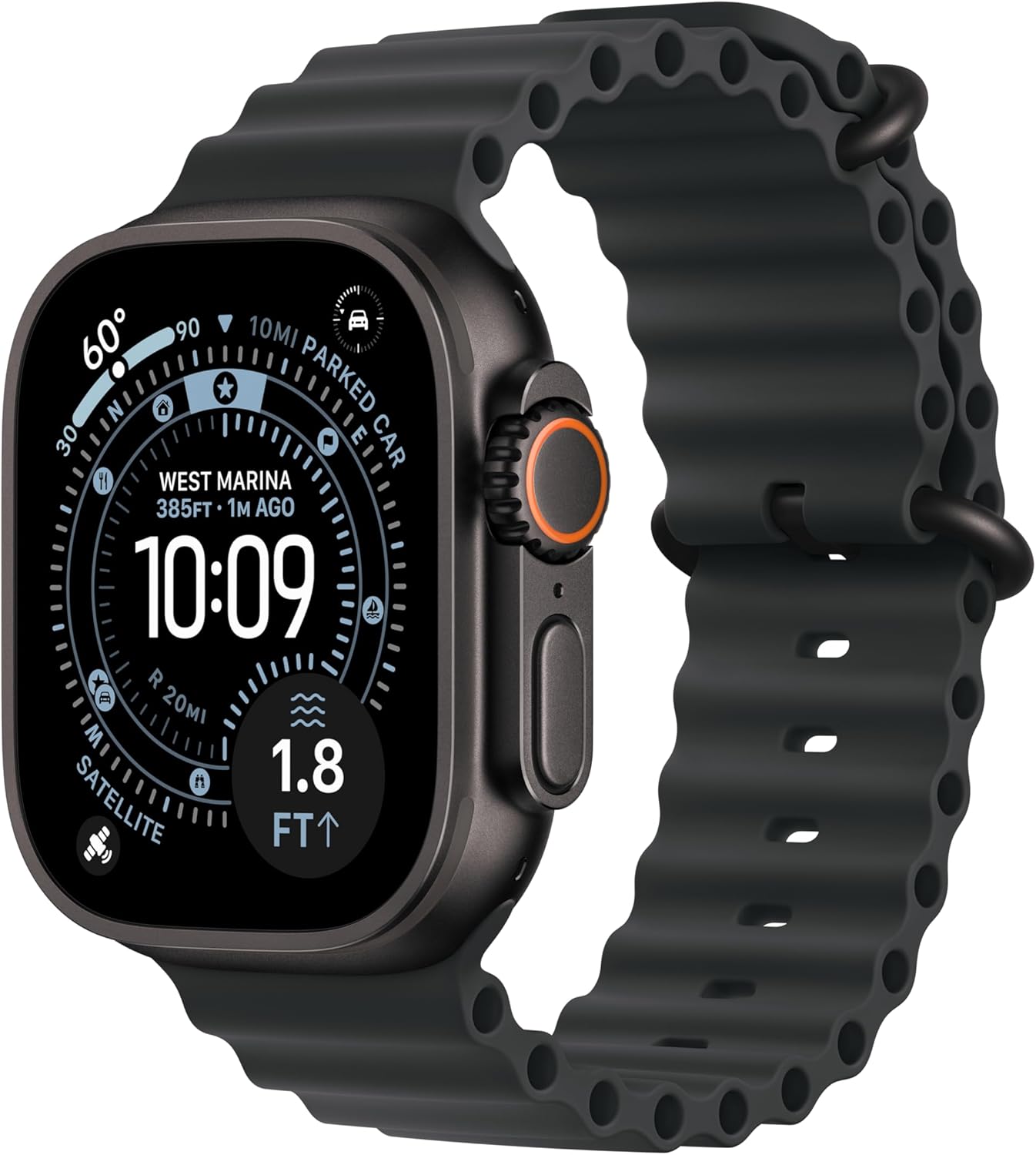
A triathlete with Type 1 diabetes who uses Dexcom G7 described pairing it with the Apple Watch Ultra 3 as the first time in years that he stopped thinking about his CGM during races.
His iPhone stayed in a waterproof pouch in his transition bag throughout the event.
With Direct to Watch active, his glucose readings appeared on the watch every five minutes throughout the swim, bike, and run legs without the phone leaving the bag once.
He saw his glucose drop during the run, took on carbs at the next aid station, and finished the race with his blood sugar stable.
The setup required careful attention during sensor pairing, but once established, it ran without interruption throughout the event.
Setting Up Dexcom G7 Direct to Watch on Ultra 3:
The pairing process has a few steps that catch people out if they do not know what to expect.
Start by installing the Dexcom G7 app on both your iPhone and the Ultra 3.
The sensor must be paired with the iPhone first before the watch connection is established.
Once your iPhone app is receiving sensor readings, open the Dexcom G7 app on the watch, go to Connections, select Direct to Watch, and follow the on-screen prompts.
If you have upgraded from an older Apple Watch, delete any previous Dexcom device pairing from your Bluetooth settings before starting fresh.
Users who carry over old pairings frequently report that the watch displays an orange phone icon, indicating that Direct to Watch has reverted to phone-bridged mode.
Clearing old pairings and starting clean typically resolves this.
The sensor takes approximately five minutes after activation to begin transmitting.
Do not expect the watch to recognise it immediately.
Most users who report pairing failures tried within the first two minutes and assumed it was not working. Give it ten minutes before troubleshooting.
Once paired, the orange phone icon disappears, and the watch displays glucose directly from the sensor.
If the icon returns during use, it means Direct to Watch has temporarily lost its independent connection and is pulling data from the phone.
This is normal during some activities and corrects itself automatically.
What the Experience Looks Like Daily:
The Ultra 3’s 42-hour battery in standard use and 60-hour optimised battery mean most users charge every two days.
For overnight glucose monitoring, this removes the anxiety of the watch dying at 4 am during a critical alert window that earlier Apple Watch generations created.
The display at 3000 nits is bright enough that the glucose complication on the watch face is visible in full outdoor sun without any adjustment.
The haptic engine on Ultra delivers the urgent low alert below 55mg/dL with a distinctive pattern that multiple reviewers with Type 1 diabetes describe as impossible to sleep through, which is the single most important functional requirement for overnight safety.
Two-way satellite messaging is available in areas without cellular coverage, which, for people with Type 1 diabetes who spend time in remote areas, adds an emergency communication safety layer that no other compatible watch provides.
Who Should Not Buy This:
Android users cannot pair an Apple Watch.
If the premium price over the Series 11 is not justified by your lifestyle, the Series 11 offers the same Dexcom G7 Direct-to-Watch integration at a lower cost.
And if you do not need the Ultra’s extended battery, rugged build, or satellite communication, you are paying for features that do not affect the core Dexcom experience.
Specifications:
| Feature | Details |
|---|---|
| Dexcom G7 Compatibility | Direct to Watch, phone-independent |
| Dexcom G6 Compatibility | Via phone (Bluetooth range required) |
| Display | OLED LTPO3, 3000 nits, 49mm |
| Battery | 42 hours standard, 60 hours optimised |
| Water Resistance | 100m, EN13319 |
| Compatibility | iPhone with iOS 17 or later |
| Min watchOS | watchOS 10 or later |
Apple Watch Series 11: (Best Value Dexcom G7 Direct to Watch Option)

How Series 11 Differs From Ultra 3 for Dexcom Use:
The core Dexcom G7 Direct to Watch integration is identical on the Series 11 and Ultra 3.
Both models run watchOS 10 or later and receive glucose readings directly from the G7 sensor via a dedicated Bluetooth connection, independent of the iPhone.
The practical differences are battery life and build.
The Series 11 runs for 24 hours in standard use, compared to 42 hours on the Ultra 3.
For most users who charge overnight while the phone monitors glucose alerts, this is manageable. For users who rely on the watch specifically for overnight alerts and want zero anxiety about battery, the charging timing requires attention.
The Series 11 comes in 42mm and 46mm cases, covering a much wider range of wrist sizes than the Ultra 3’s fixed 49mm.
For people with wrists below 7 inches who found the Ultra 3 too large, the Series 11 in 42mm is the accessible choice that still provides full Direct to Watch support.
The LTPO OLED display with always-on capability keeps the glucose complication visible without requiring a wrist raise, which, during activities like cooking, driving, or sitting in a meeting, makes glucose awareness truly passive rather than requiring any intentional action.
Specifications:
| Feature | Details |
|---|---|
| Dexcom G7 Compatibility | Direct to Watch, phone-independent |
| Dexcom G6 Compatibility | Via phone (Bluetooth range required) |
| Display | LTPO OLED, Always-On, 2000 nits |
| Case Sizes | 42mm and 46mm |
| Battery | Up to 24 hours |
| Water Resistance | 50m |
| Compatibility | iPhone with iOS 17 or later |
Samsung Galaxy Watch 8: Best Compatible Watch for Android Users

Official Dexcom Support on Samsung Wear OS:
Samsung Galaxy Watch models running Wear OS, specifically Series 6, 7, 8, 9, and 10, are on Dexcom’s official compatibility list.
This means the Dexcom G7 app has been tested and confirmed to work with these watches.
The experience is phone-bridged rather than direct, meaning your Android phone must be within Bluetooth range of the sensor for readings to update on the watch.
The phone runs the Dexcom G7 app and pushes current readings and alerts to the watch.
The glucose data appears as a persistent watch face complication that updates every 5 minutes.
High and low alerts arrive as haptic notifications on the watch.
You can configure your alert thresholds in the Dexcom G7 app on your phone, and those settings apply to both phone and watch notifications.
One setup step that most guides skip: after installing the Dexcom G7 app on your Galaxy Watch through the Galaxy Store, open the app on the watch at least once before expecting notifications to arrive.
The watch app needs to be initialised before it begins receiving data from the phone app.
Users who install the watch app and wait passively often report missing early readings until they open the watch app manually for the first time.
What Samsung Adds Beyond the Dexcom Display:
The Galaxy Watch 8 is the only watch on this list that includes vascular load monitoring during sleep, measuring cardiovascular stress overnight, separate from glucose data.
For people with diabetes who face elevated cardiovascular risk, this adds a monitoring dimension that no other Dexcom-compatible watch provides.
The Antioxidant Index tracks oxidative stress management over weeks, connecting lifestyle habits to long-term health outcomes in a way that complements daily glucose tracking.
FDA-authorised sleep apnea detection screens for a condition that worsens insulin resistance and produces difficult morning glucose patterns.
Who Should Not Buy This:
iPhone users cannot pair the Samsung Galaxy Watch with their phone.
For the most complete Dexcom experience on Android, confirm your specific Galaxy Watch model and Android phone appear on Dexcom’s official compatibility page at dexcom.com/compatibility before purchasing, as compatibility updates periodically.
Specifications:
| Feature | Details |
|---|---|
| Dexcom G7 Compatibility | Official Wear OS support, via Android phone |
| Dexcom G6 Compatibility | Via Android phone |
| Display | AMOLED 1.5 inch, 3000 nits |
| Battery | Up to 40 hours |
| Required OS | Android 10 or later, compatible Samsung phone recommended |
| Water Resistance | 5 ATM, IP68 |
Garmin Fenix 8: (Best Dexcom Compatible Watch for Outdoor Athletes)

A marathon runner with Type 1 diabetes described the change she experienced when she started using the Dexcom Connect IQ widget on her Garmin Fenix 8.
During training runs, she had previously set alarms to remind herself to check her phone every thirty minutes.
With glucose displayed as a data field on the same watch screen as her heart rate and pace, she saw her glucose dropping during the back half of a long run and took action 14 minutes earlier than she would have with any other monitoring approach.
She finished the run with stable glucose and no crash.
She described it as the first time technology had made a meaningful, practical difference to her training safety.
Setting Up Dexcom on Garmin via Connect IQ:
The setup for Dexcom on Garmin requires downloading the Dexcom G6 or G7 app from the Connect IQ store on the Garmin Connect app on your phone. Search Connect IQ for Dexcom and install the watch app.
Once installed, the Dexcom data widget appears on the screen and can be accessed by pressing the up or down button during normal watch use.
During any exercise activity, the Dexcom data field can be added to a configurable training data screen, displaying glucose alongside heart rate, pace, distance, or any other metric.
Your phone must run the Dexcom G7 app and remain within Bluetooth range for readings to update on the watch.
The Fenix 8 does not receive Dexcom data independently. For athletes who carry their phone in a running vest or pack, the phone simply needs to stay within approximately 30 feet of the watch for readings to update reliably.
Most reviewers describe no disruption to data during runs with the phone in a vest pocket.
An important note from Garmin’s own documentation: the Dexcom data displayed on the Connect IQ widget is for secondary passive monitoring only.
All treatment decisions must still be made from the official Dexcom app on the phone.
The widget does not trigger Garmin’s built-in glucose alarms.
High and low alerts still arrive as notifications from the Dexcom phone app forwarded to the watch.
This means alert configuration happens in the Dexcom phone app rather than on the watch itself.
What Garmin Adds for Athletic Diabetes Management:
The Fenix 8’s AMOLED display reads the glucose data field clearly in direct mountain sunlight, which previous Garmin transflective displays struggled with.
ClimbPro shows the remaining elevation alongside the glucose reading, allowing a runner or hiker to see both their physiological state and their terrain demands at a glance.
After a session, Garmin Connect shows the Dexcom glucose overlay alongside the full activity data.
Over weeks of training, this builds a picture of exactly how different session types, intensities, and durations affect glucose, which, for a diabetic athlete managing insulin and nutrition around training, is genuinely useful clinical information.
Specifications:
| Feature | Details |
|---|---|
| Dexcom G7 Compatibility | Connect IQ widget, via phone |
| Dexcom G6 Compatibility | Connect IQ widget, via phone |
| Display | AMOLED 454×454 pixels, 47mm |
| Battery | 16 to 18 days smartwatch |
| GPS | Multi-band dual-frequency |
| Maps | Preloaded TopoActive |
| Water Resistance | 10 ATM |
Garmin Venu 4: (Best Everyday Garmin Watch for Dexcom Users)
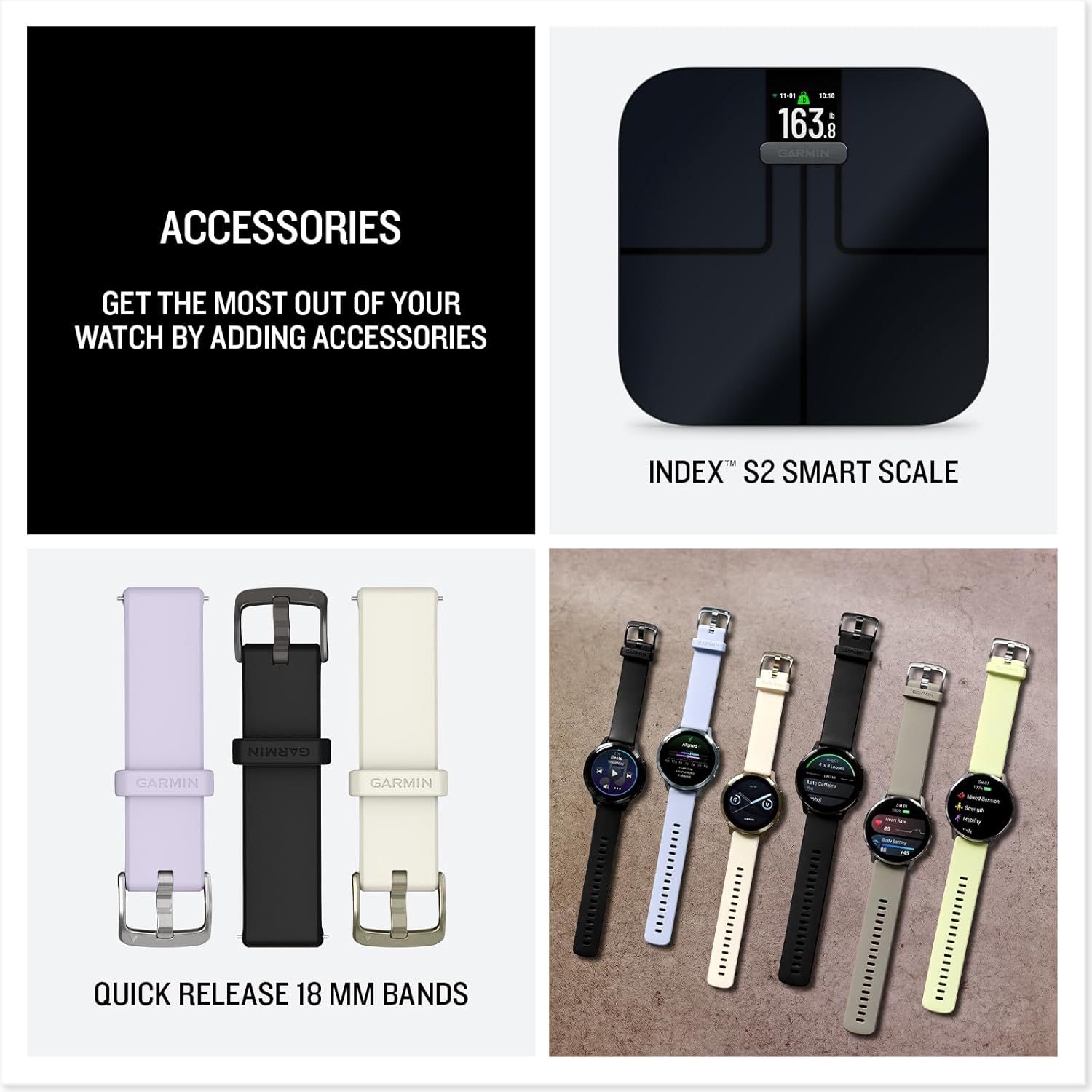
A project manager with Type 2 diabetes described the Venu 4 as the watch that made her stop thinking of herself as someone who wore a medical device on her wrist.
It looked like a regular watch.
It worked at her desk, at client meetings, and during weekend hikes.
When her Dexcom reading appeared on the Venu 4 watch face during a work presentation, and she glanced at it, nobody in the room noticed she was checking her glucose levels.
She described that invisibility as something she had not expected to value as much as she did.
Dexcom Connect IQ on Venu 4:
The setup is identical to the Fenix 8.
Install the Dexcom app from the Connect IQ store, add it as a data field for exercise activities, and keep the phone nearby so readings update.
The Venu 4’s AMOLED display clearly shows the widget, and the glucose data appears on an accessible screen during daily wear.
What makes the Venu 4 different from the Fenix 8 for Dexcom users is the context.
The Venu 4 is Garmin’s lifestyle-focused watch, with a clean design that does not read as sports equipment in everyday situations.
For someone who wears their Dexcom all day and wants a watch that reflects that full day rather than just the exercise portion, the Venu 4’s design works in all situations.
Lifestyle Logging on the Venu 4 allows you to manually record meals, caffeine, alcohol, and stress events, then review how those inputs correlate with your Body Battery and health metrics over time.
For Dexcom users tracking how specific foods and habits affect glucose patterns, the combination of manual lifestyle logging and automated health metrics in Garmin Connect builds a data picture that connects behavioural inputs to physiological outcomes over weeks.
Health Status monitoring alerts you when overnight biometrics drift outside your personal four-week baseline.
For Dexcom users who experience glucose changes associated with illness, stress, or overtraining, this early physiological warning adds a predictive layer that helps explain why Dexcom readings look different from day to day.
For a broader understanding of how the Venu 4 handles health monitoring, including sleep, stress, and recovery, alongside Dexcom integration in daily life, the full analysis at best-smartwatches-for-monitoring-stress covers the Garmin health platform in detail.
Specifications:
| Feature | Details |
|---|---|
| Dexcom G7 Compatibility | Connect IQ widget, via phone |
| Dexcom G6 Compatibility | Connect IQ widget, via phone |
| Display | AMOLED 1.4 inch |
| Battery | Up to 12 days smartwatch |
| GPS | Multi-band dual-frequency |
| Water Resistance | 5 ATM |
| Compatibility | iOS and Android |
Google Pixel Watch 4: (Best Android Watch for Dexcom via Third-Party Apps)
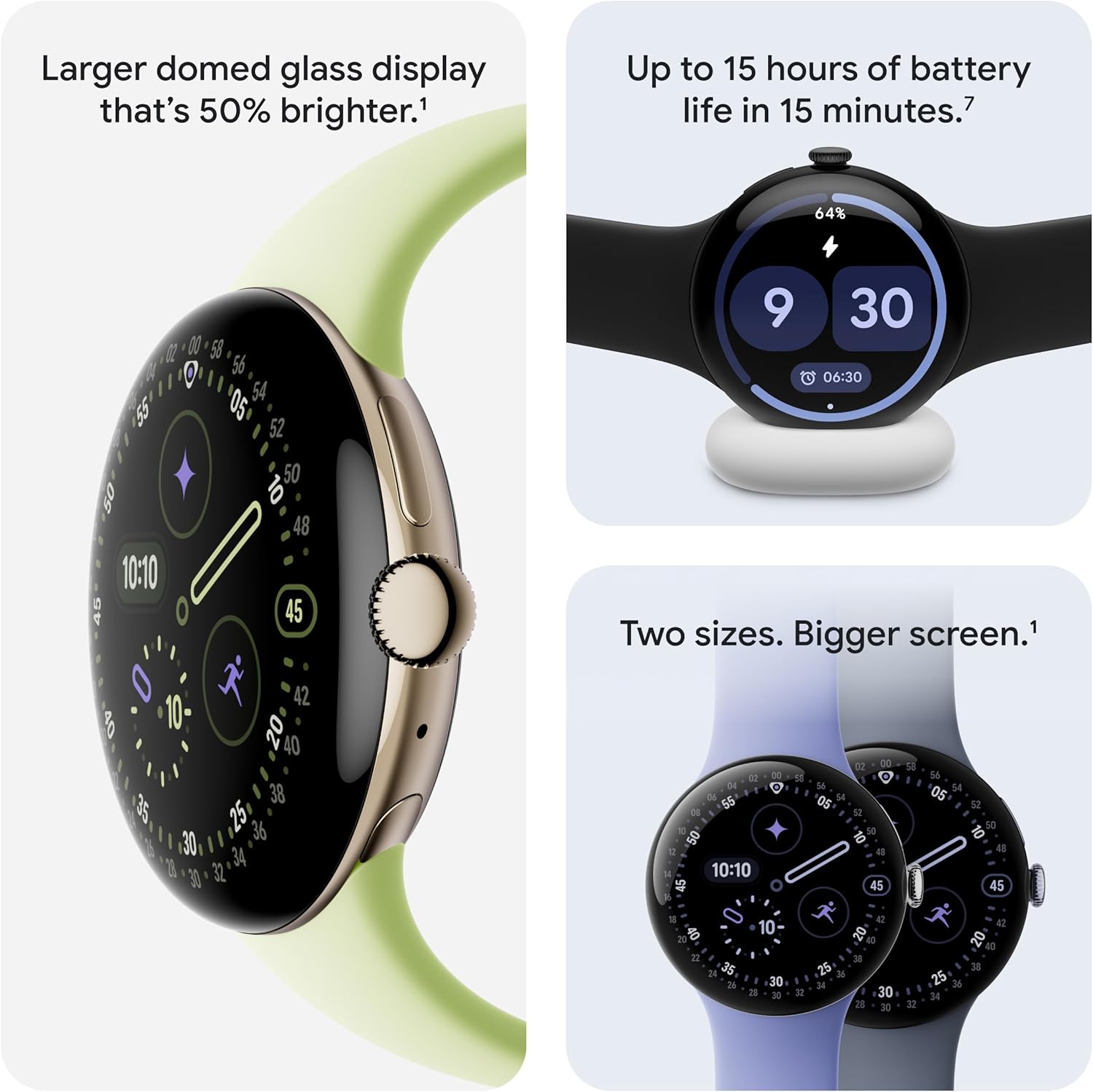
A data analyst with Type 1 diabetes described the honest tradeoff of using the Pixel Watch 4 with Dexcom G7.
It took him one afternoon to set up Gluroo, the third-party Wear OS app that places his glucose reading and trend graph on the watch face as a persistent complication.
Since that afternoon, the setup has run without interruption for months.
His glucose reading appears on the watch face whenever he raises his wrist. He knows the setup is unofficial. He has decided the experience is worth the tradeoff.
Why Pixel Watch Is Different From Samsung for Dexcom:
This is the distinction that the original article on this page got wrong and that most guides in 2026 still do not explain clearly.
Samsung Galaxy Watch is on Dexcom’s official compatibility list for Android.
The Dexcom G7 app has a dedicated Wear OS version that installs on Samsung watches through the Galaxy Store.
Google Pixel Watch is not on Dexcom’s official compatibility list.
Dexcom’s official app does not have a dedicated Pixel Watch version. Glucose data reaches Pixel watches through third-party applications.
The most reliable of these is Gluroo, a Wear OS app that reads Dexcom G7 data from the Dexcom phone app and displays it as a watch face complication.
It works. It has a large user community in the diabetes community, confirming its reliability.
But it is not a Dexcom-supported integration, and if Gluroo has a compatibility issue after a Wear OS or Dexcom app update, you may experience a gap in wrist glucose display until the apps catch up.
For Dexcom users who want the most reliable, officially supported Android watch integration, the Samsung Galaxy Watch is the safer choice.
For Dexcom users who prefer the Pixel Watch for other reasons and are comfortable managing a third-party app relationship, the Gluroo setup works well in practice.
What Makes the Pixel Watch 4 Worthwhile Despite This:
The Gemini AI integration makes health data more accessible through natural language.
Asking the watch why your Energy Score is low and receiving a contextual explanation that links sleep, HRV, and recent activity removes the need to manually navigate health dashboards.
For someone new to interpreting secondary health data related to glucose management, this conversational access significantly lowers the barrier.
The cEDA continuous electrodermal activity sensor detects stress-driven autonomic responses before they appear in the Dexcom reading.
Cortisol-related glucose elevation follows the stress response, not precedes it. Catching the stress signal early gives a window to intervene before the glucose spike follows.
The Actua 360 display at 3000 nits makes the Gluroo glucose complication clearly readable in outdoor conditions, a practical advantage since the glucose number on the watch face is the information users check most frequently.
“New to glucose monitoring? Read our beginner’s guide to smartwatches for glucose monitoring.”
Specifications:
| Feature | Details |
|---|---|
| Dexcom G7 Compatibility | Via Gluroo or other third-party Wear OS apps, NOT official |
| Dexcom G6 Compatibility | Via third-party apps |
| Display | AMOLED Actua 360, 3000 nits |
| Battery | 30 hours (41mm), 40 hours (45mm) |
| GPS | Dual-band dual-frequency |
| Compatibility | Android only |
Apple Watch SE: (Best Budget Dexcom Compatible Watch for iPhone Users)

What SE Supports and What It Does Not:
The Apple Watch SE supports the Dexcom G7 app and receives glucose readings and alerts from the Dexcom G7 app on the iPhone.
However, the Direct to Watch feature that allows the G7 sensor to connect directly to the watch without the iPhone is not available on SE.
The SE requires the iPhone to be within Bluetooth range for glucose readings to update on the watch.
This distinction is practically meaningful depending on your lifestyle.
If you keep your iPhone nearby throughout the day and night, the SE provides the same visible glucose complication and alert delivery as the higher-tier Apple Watches.
If you regularly go running, swimming, or to situations where leaving the phone behind is intentional, the SE’s phone dependence is a real constraint.
The Dexcom G7 app installation and configuration on SE is identical to that of other Apple Watch models.
Install the app from the App Store on both the iPhone and the watch, start a new sensor, and the readings begin appearing as a watch face complication once the iPhone app is receiving data.
Alert thresholds configured in the iPhone app automatically apply to watch notifications.
The 18-hour battery on SE requires daily charging.
For overnight CGM monitoring, the typical approach is to charge before bed and rely on the iPhone for alerts, switching to watch alerts during the day when the watch is charged and on the wrist.
Who Should Not Buy This:
If you regularly leave your iPhone behind and want phone-independent glucose readings, the SE does not provide Direct to Watch, and this is a real functional limitation.
If overnight watch-delivered alerts are the priority, the 18-hour battery requires careful planning for charging timing. For Android users, the SE is not compatible with any Android phone, and this entire option does not apply.
Specifications:
| Feature | Details |
|---|---|
| Dexcom G7 Compatibility | Via phone (Bluetooth range required), no Direct to Watch |
| Dexcom G6 Compatibility | Via phone |
| Display | Retina LTPO2 |
| Battery | Up to 18 hours |
| Water Resistance | 50m |
| Compatibility | iPhone only |
8. Dexcom G7 Sensor, Device: (Best Smartwatches Compatible with Dexcom G6/G7)

Features:
Accuracy:
The mean absolute relative difference is 8.2% for adults and 8.1% for kids.
This establishes a standard in the CGM market and is an improvement over its predecessor.
G7 accounts for 15% of lab values.
Smaller Sensor:
You don’t have to attach a transmitter to the sensor; it’s built in.
The sensor filament is shorter.
It is inserted perpendicular to the skin, leading to a decrease in error.
Warmup Timer:
The warm-up timer is shorter, which is only half an hour.
For those who want to decrease the warmup timer to zero, you must place a new sensor on the skin half an hour before the previous one expires.
Customization:
There are several ways to customize high- or low-alert thresholds to make them more actionable.
The user can set thresholds for beginners when rise and fall notifications occur.
If the glucose is decreasing fast, the user can set an alarm to go off if this happens.
It’s also possible to set high alerts if glucose increases over a specific period.
This way, glucose rises right after a meal and doesn’t trigger unnecessary alerts.
Specs:
| Brand | Dexcom |
| Type of the product | Continuous glucose monitoring |
| Model name of the item | Dexcom G7 sensor |
| Glucose range | 40-400 mg/dl |
| Data transmission | Every 5 minutes |
| Alerts of the product | Customizable alerts |
| Connectivity feature | Bluetooth |
| Weight of sensor | 8 grams |
| Size | Standard |
| Wearing duration | Upto 10 days |
8. Dexcom G6: (Best Smartwatches Compatible with Dexcom G6 and G7)

Features:
How it Works:
A small sensor wire is placed under the skin of the arm or waist, and an automated applicator monitors blood sugar levels.
The sensor wire is set with a sticky patch.
The sensor calculates glucose, that is, blood sugar in the fluid between cells, relatively more than glucose found in the blood.
- A transmitter is connected to the sensor, which transfers data wirelessly within a few minutes.
- A receiver is also attached to a monitor that shows glucose levels and trends.
Advantages:
The Dexcom G6 helps track trends in blood levels, even if the readings are not perfectly accurate.
CGMs can show spikes and dips in glucose levels, but they’re not always reliable for detecting them accurately.
It primarily reduces the need for different finger picks that are painful and hard to manage.
While testing, I noticed it helps clarify how diet and exercise affect blood sugar levels.
Specs:
| Brand | Dexcom |
| Type of the product | Continuous glucose monitoring |
| Model name of the item | Dexcom G6 sensor |
| Glucose range | 40-400 mg/dl |
| Data transmission | Every 5 minutes |
| Alerts of the product | Customizable alerts |
| Connectivity feature | Bluetooth |
| Weight of sensor | 8 grams |
| Size | Standard |
| Wearing duration | upto 10 days |
Conclusion:
The recent CGM device is the Dexcom G7, which performs excellently compared to its predecessor. This guide mentions the top smartwatches and smartphones that work with Dexcom G7.
If you are looking for a Dexcom G7-compatible mobile phone for glucose monitoring, you don’t have to spend extra cash on test strips. You can reach us with any queries!
Dexcom G6 vs G7: Which Watches Work With Each:
Before buying, confirm which Dexcom system you have or are getting. The compatibility picture differs.
Dexcom G7 supports Direct to Watch on compatible Apple Watches (Series 6 and above with watchOS 10 or later), official Wear OS support on Samsung Galaxy Watch models, and unofficial display on Pixel Watch via Gluroo and similar apps. G7 sensors last ten days.
Dexcom G6 does not support Direct to Watch on any watch. All G6 glucose display on smartwatches requires the phone to be within Bluetooth range acting as the data bridge. The Garmin Connect IQ apps support G6 and G7 equally. G6 sensors last ten days, and the system is considered legacy compared to G7, but remains widely used and supported.
FAQs:
Does Dexcom G7 connect directly to any Android watch without a phone?
As of 2026, the Direct to Watch feature that allows the Dexcom G7 sensor to connect independently to a smartwatch without the iPhone acting as a bridge is available only on compatible Apple Watch models. On all Android-paired watches including Samsung Galaxy Watch and Google Pixel Watch, the Dexcom data routes through the Android phone first, requiring the phone to be within Bluetooth range of the sensor. Dexcom has confirmed they are working on expanding direct watch connectivity but no Android direct-to-watch feature has launched at the time of writing. For the most current compatibility information, check the official Dexcom compatibility page directly at dexcom.com/compatibility.
Is Dexcom compatible with smartwatches?
If you have connected your watch to a mobile device, the Dexcom app for Android will work with Android wearables that support custom watch faces and meet app compatibility requirements.
Does Dexcom G7 need wifi?
You can use a real-time CGM app without WiFi as long as it’s connected via Bluetooth.
Related Articles:
Best Amazfit Watches (2026): For Women, iPhone Users & Long Battery Life
Best Fitness Trackers to Buy Right Now
Luis Cooper

Hi, I'm Luis, the guy behind this site. I love wearing watches, especially ones that look great on small wrists (mine are about 6.3" around). The Watches Geek is dedicated to helping you learn about and buy watches that you will love wearing. I want this website to be the last destination for people to pick the best watches to fit their needs. You can find our unbiased reviews here on Thewatchesgeek.